

If you already use an email service that offers SMTP access, such as Zoho Mail, Amazon SES, SendGrid, Mailgun or your own company mail server, you can have NeetoCRM send its emails through it so they arrive from your own address. You will need the SMTP details from that provider before you start.
The address you set here is used for all emails your workspace sends to leads, deals and contacts.
Connecting your SMTP provider
Go to Admin Panel > Email > Send emails from your domain.
Click SMTP.
Click Connect SMTP.
Entering your SMTP details
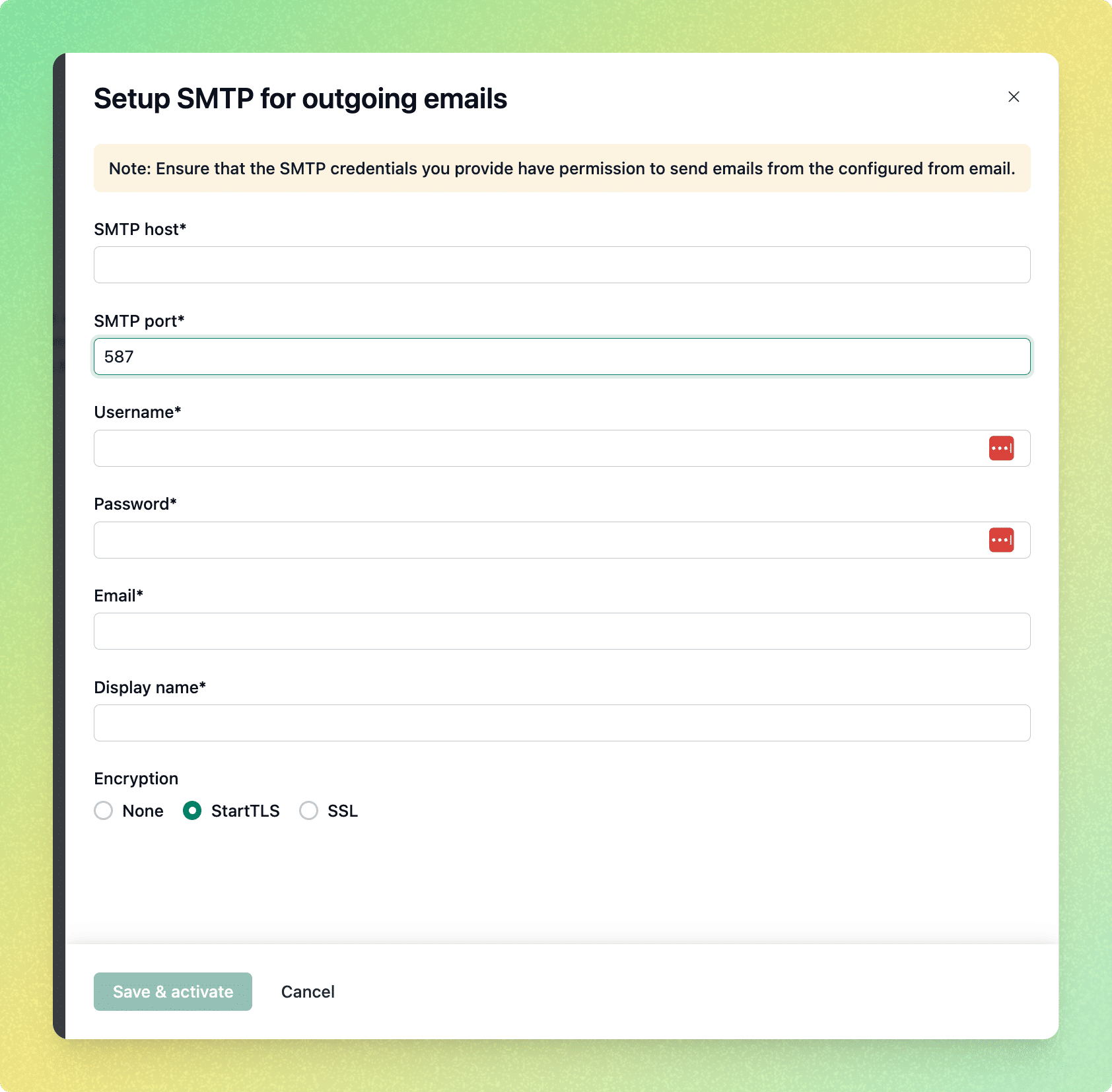
In SMTP host, enter the hostname from your provider, for example
smtp.example.com.In SMTP port, enter the port your provider uses. This is usually 587 or 465.
In Username, enter the SMTP username from your provider. This is often your full email address.
In Password, enter the SMTP password. Some providers issue a separate app specific password for this rather than your normal account password.
In Email, enter the address you want your leads, deals and contacts to see as the sender, for example
sales@example.com. Your provider has to allow this address to send, or it will reject the emails.In Display name, enter the name they see in their inbox, for example
Sales Team.In Encryption, choose the option that matches the port you entered. Port 587 uses StartTLS and port 465 uses SSL. A mismatch here is the most common reason sending fails, and the two settings have to agree.
Click Save & activate.